01 / SHORTCUTS
Help, a hotkey away.
Global hotkeys are planned to bring your assistant into reach while you work or play. Choose shortcuts that fit around your existing controls.
 TaylorAssist
TAYLOR ASSIST · A WINDOWS DESKTOP TOOL
Taylor Assist is a compact Windows toolbar designed to help you capture what’s on your screen and ask about it in your installed ChatGPT or Copilot app.
Windows desktop tool · Uses your own ChatGPT or Copilot app
THIS IS THE TAYLOR ASSIST TOOLBAR
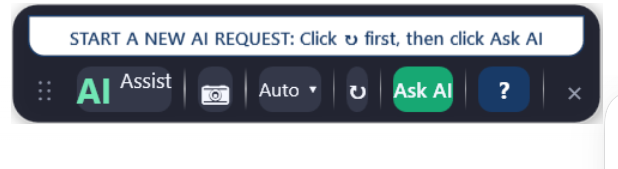
For example: capture a confusing setting, then ask your assistant what it means.
The Taylor Assist toolbar. Supported Windows and assistant app versions will be listed with the download.
FAMILIAR APPS. A MORE CONNECTED FLOW.
MEET TAYLOR ASSIST
Use hotkeys and screenshot capture to bring context to your installed ChatGPT or Copilot app. These are the workflows Taylor Assist is designed to support.
Your assistant controls, together in one compact toolbar. Drag it anywhere on your screen using the dotted grip on the left.
01 / SHORTCUTS
Global hotkeys are planned to bring your assistant into reach while you work or play. Choose shortcuts that fit around your existing controls.
02 / CONTEXT
Screenshot capture is planned to help you give your assistant visual context. Check your capture for private information before sharing it.
03 / CONNECTION
Designed for use alongside the installed ChatGPT and Copilot Windows apps. Your assistant account and any subscription stay with its provider.
Check the release guide for supported Windows versions, assistant apps and available shortcuts.
SEE THE WORKFLOW
A 27-second animated walkthrough using the Taylor Assist toolbar. Illustrative demo, not a live screen recording.
Taylor Assist for Windows. Drag the dotted grip to move the toolbar where you need it. Open the assistant menu to see Auto-detect supported app, ChatGPT and Microsoft Copilot. Open the screenshot menu to see Full screen (F9), Active window and Select area (Shift+F9). Click reset first, then Ask AI. The example prompt “What does this setting mean?” is typed into an illustrative ChatGPT message box. No message is sent and no AI response is simulated. Use your own installed ChatGPT or Copilot app. This animation illustrates the workflow and contains no audio.
FROM “WHAT’S THIS?” TO “GOT IT.”
A puzzle on screen. A setting you don’t recognise. A task that could use a second pair of eyes.
Use Taylor Assist on your Windows desktop. Review screenshots before sharing and keep private information out of your capture.
Use your configured shortcut to reach your preferred installed app.
Choose the screen context you need, then review it before sharing.
Add your question in your assistant and return to what you were doing.
A SIMPLE START
Start with your preferred AI app, then download Taylor Assist for Windows. Follow the installation instructions supplied with your release.
Install and sign in to your preferred ChatGPT or Copilot Windows app through its official provider. Check that it works on its own first.
ChatGPT help ↗Download Taylor Assist for Windows from the section below. Once downloaded, open the installer and follow the instructions supplied with the release.
Go to download ↓Follow the release guide to select your assistant and configure available shortcuts. Test on non-sensitive content and resolve any shortcut conflicts.
Release guide coming soonGET TAYLOR ASSIST
A compact toolbar for screenshots and your AI assistant.
Windows desktop toolContinue to Stripe to review pricing and complete your purchase.
Review the product, licence and delivery details at checkout.
Payments are handled by Stripe.
GOOD QUESTIONS
No. Taylor Assist is a Windows companion designed to help you access an installed assistant and supply screen context. The AI responses come from your chosen provider.
No. Install your preferred app separately and use your own account. Availability, features, limits, and subscription requirements depend on that provider.
The product targets Windows. Exact operating system requirements and tested ChatGPT and Copilot app versions will be listed with the first installer; compatibility has not yet been certified.
Use Buy now to review pricing and purchase through Stripe. Check the checkout details for licence and delivery information.
This website does not capture or upload screenshots. The desktop product’s capture, storage, and sharing behaviour must be documented before release. Anything you share with an AI app is subject to that provider’s terms and privacy policy.
Compatibility is not guaranteed. Shortcuts can conflict with other software; some games, protected windows, or fullscreen modes may restrict capture or hotkeys. Follow each app’s rules and the final release documentation.
No affiliation or endorsement is claimed. ChatGPT and Copilot names belong to their respective owners.
LET’S KEEP THINGS SIMPLE
Setup questions, feedback, or something unexpected.
Email us for setup questions, feedback or support. Opens your email app.